Welcome to
Elmhurst University
Here, you’ll find a welcoming community, a top liberal arts university experience and boundless opportunities.
Questions about FAFSA? We are here to help.
Study What
You Love
Get ready for an outstanding education at the intersection of the liberal arts and professional life.
Undergraduate Programs
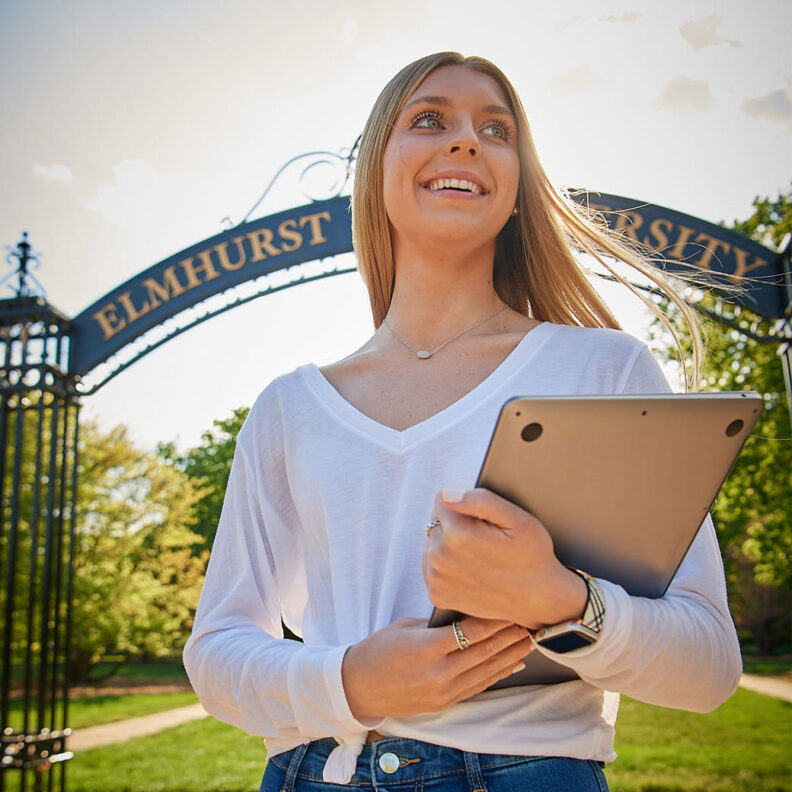
Learn in small classes taught by faculty who believe in you. From business and nursing to jazz studies and studio art, our 70-plus majors open the doors to opportunity.
Graduate Programs
Our graduate programs are practical, flexible and tailored to meet the needs of employers. Choose from options in health care, business, education and technology.

Doctor of Nursing Practice
Elmhurst’s online Doctor of Nursing Practice (DNP) program prepares you to manage complexity and lead change in health care.

Degree Completion Programs
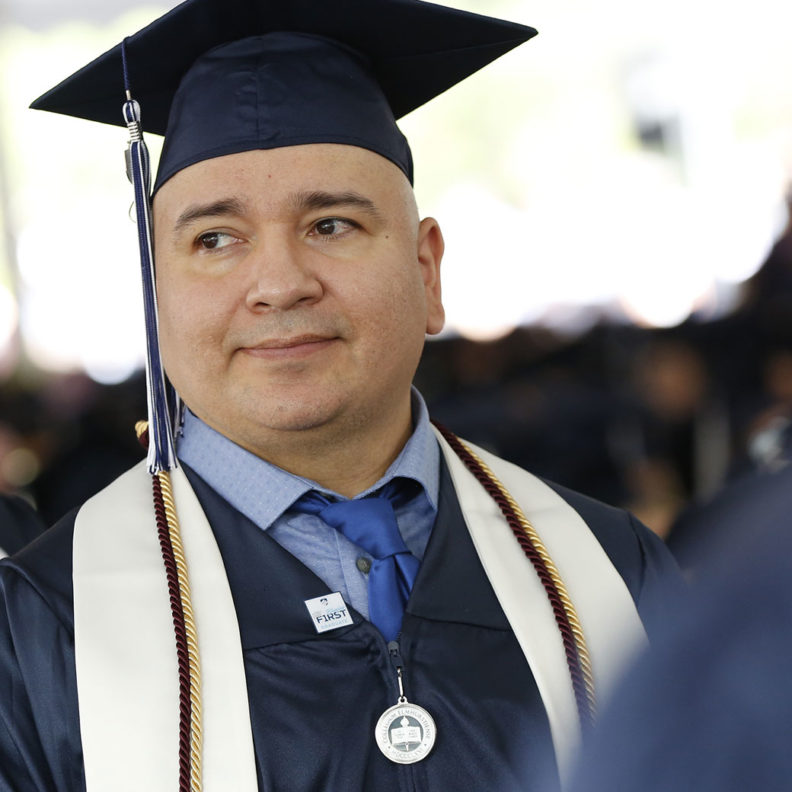
Complete your bachelor’s degree in evening classes or online. Designed for working adults, our degree completion programs put you on the fast track to success.
Certificate Programs
Gain an edge in the job market with a certificate in fields like GIS, nursing and cybersecurity. Our graduate and undergraduate certificate programs are designed for working professionals.

Elmhurst Learning and Success Academy
Designed for young adults with differing abilities, ELSA offers a four-year academic experience with a focus on strategies for independent living.
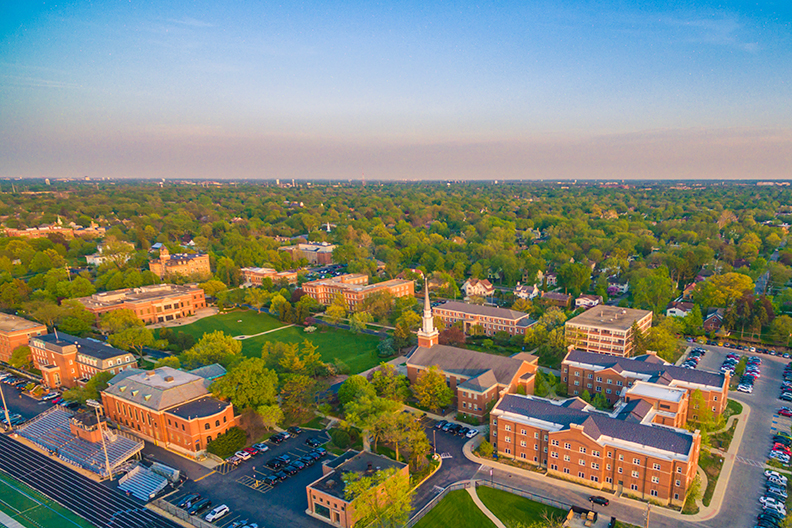
Welcome to Your New Home
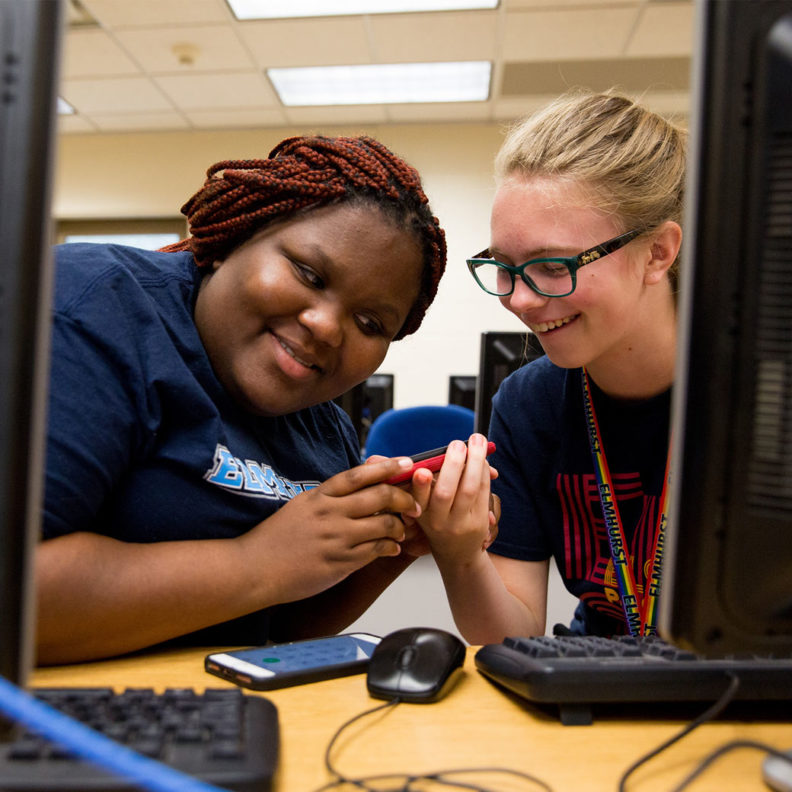
Get involved, make lifelong friends and explore what matters to you. Our community will embrace and support you.





Wellness Matters.
Many resources are available to you throughout your college experience.
Campus News
Student Films Star in Elmhurst University Film Festival on May 10
Tuesday, April 23
Alumni to Discuss Careers in Speech-language Pathology on May 2
Thursday, April 18
Upcoming Events
Chatting with Chaplain Scott at St. Louis
Thursday, April 25 at 5:30 p.m.
Bluejay 5K for Honor Flight Chicago
Saturday, April 27 at 7:30 a.m.
Building Our Roman Catholic Life at Elmhurst U.
Tuesday, April 30



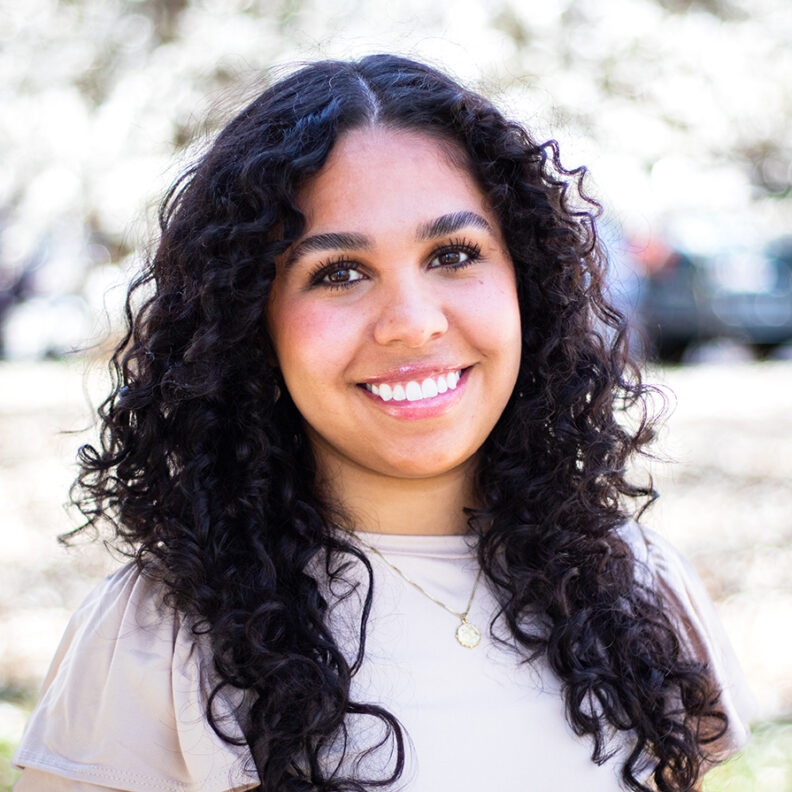
Transferring to Elmhurst University has given me the opportunity to explore and excel in my academics, as well as immerse myself with new opportunities for self growth. Now more than ever I feel more connected to the school and am proud to call it home.
Carly Matthews ’24
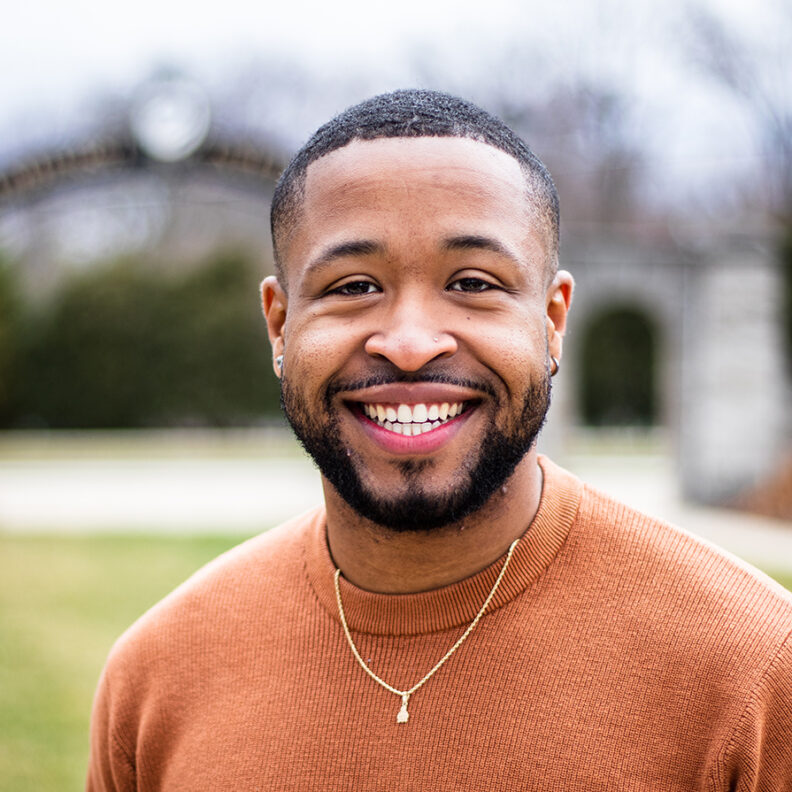
My experience at Elmhurst has been one for the books – pun intended! I have fostered a community that will thrive much after my tenure as a student here ends. I am proud to have chosen Elmhurst, and would do it again.
Marvin Malone, MBA ’23
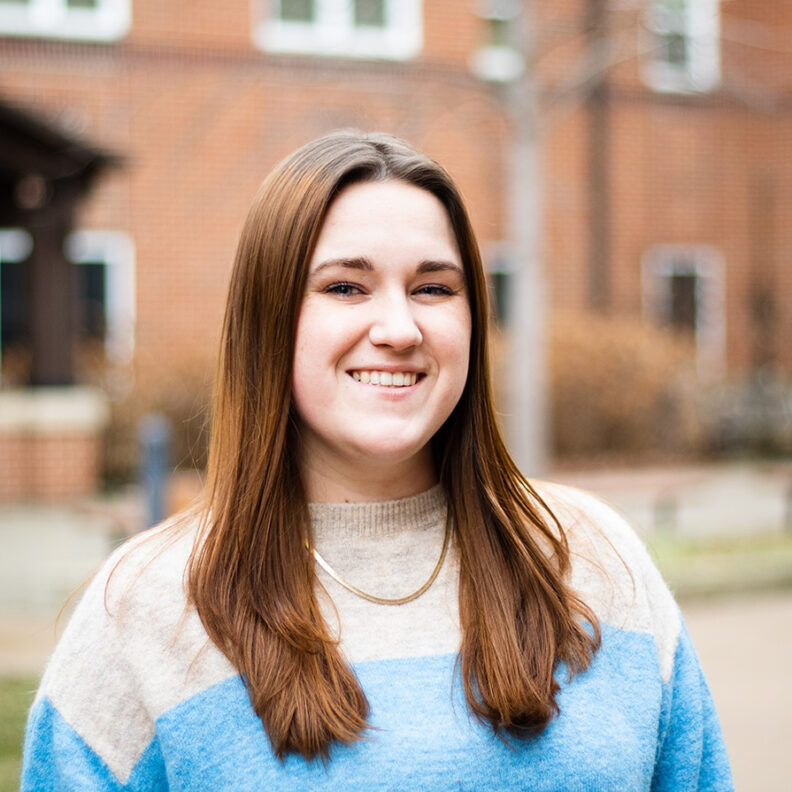
Elmhurst has given me countless opportunities to grow as a leader and as a member of the school community. Because I went here, I have an amazing community of supportive people that I know I can rely on.
Jessica Winston ’23
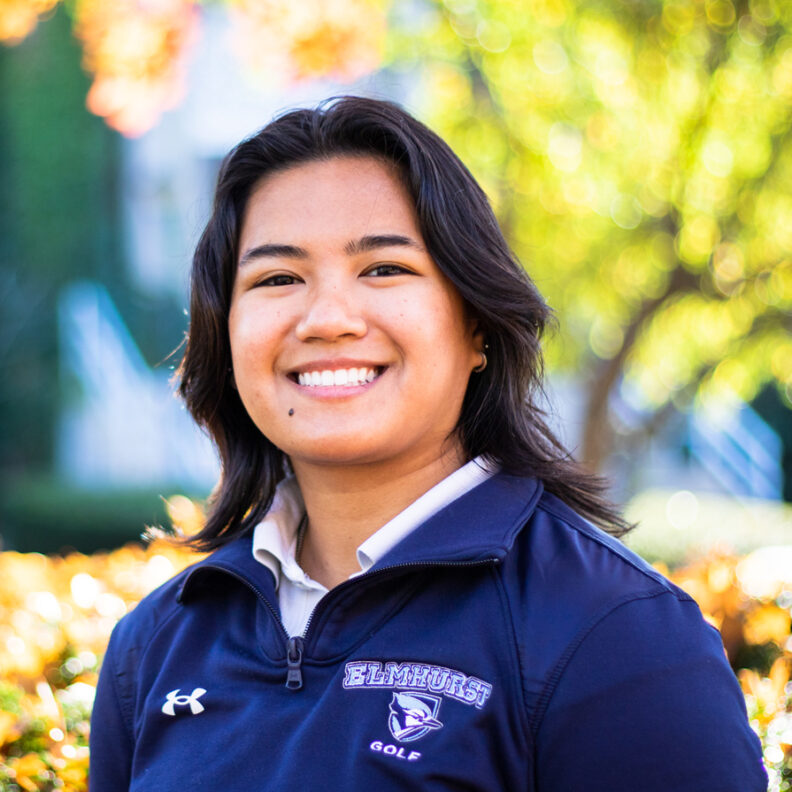
Being part of the campus, it has provided me with an abundance of opportunities to nurture my leadership skills and spread it among the organizations I am part of. I’ve cultivated an incredible network of individuals and communities who have shown consistent support and skills that will take me farther than ever.
Mia Frances Bernasol ’25

Elmhurst has provided me with an inclusive and supportive community that I know I can rely on. Countless opportunities to explore different facets of leadership & teamwork let me know that I made the right choice becoming a Bluejay.
Eric Castillejo ’26

Elmhurst University provided me, a transfer and first-generation college student, with the opportunity to complete my bachelor’s degree and explore my interest in becoming a triple major. I’m extremely proud of my growth as a student because of Elmhurst – and I hope to continue my involvement in campus programs and activities!
Mikayla Zinkel ’25

Elmhurst University has given me the opportunity to grow in all areas of my life. Due to the flexibility and freedom Elmhurst provided me, I was able to pursue my professional passions.
Eaden Hvarre ’24
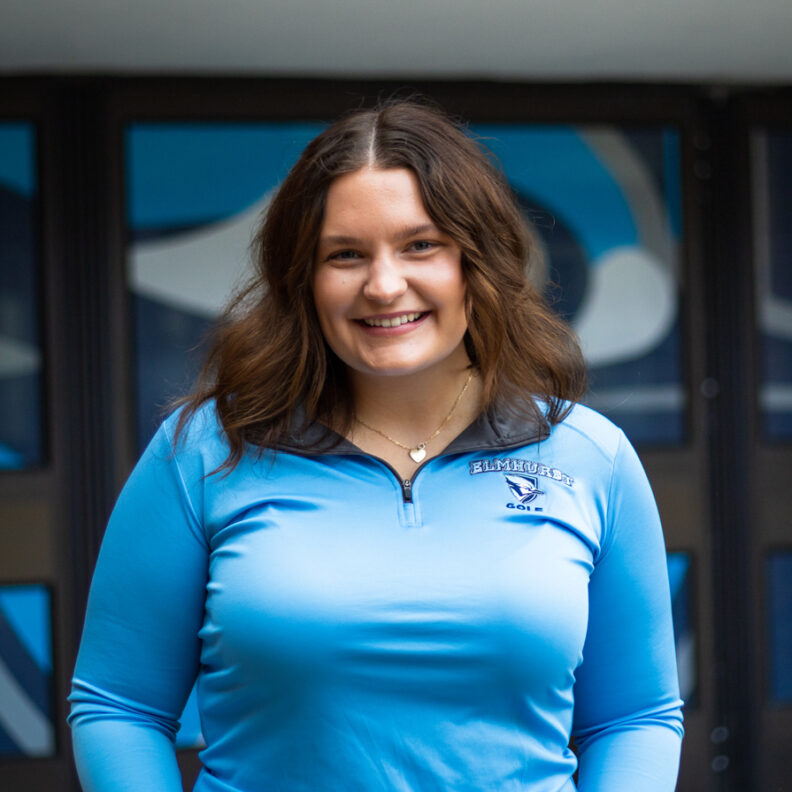
Elmhurst University has been a transformative journey for me. The abundant opportunities here, coupled with supportive academics and lasting friendships, have significantly shaped both my game and personal growth. I am proud to call Elmhurst my home away from home!
Morgan Keller ’25
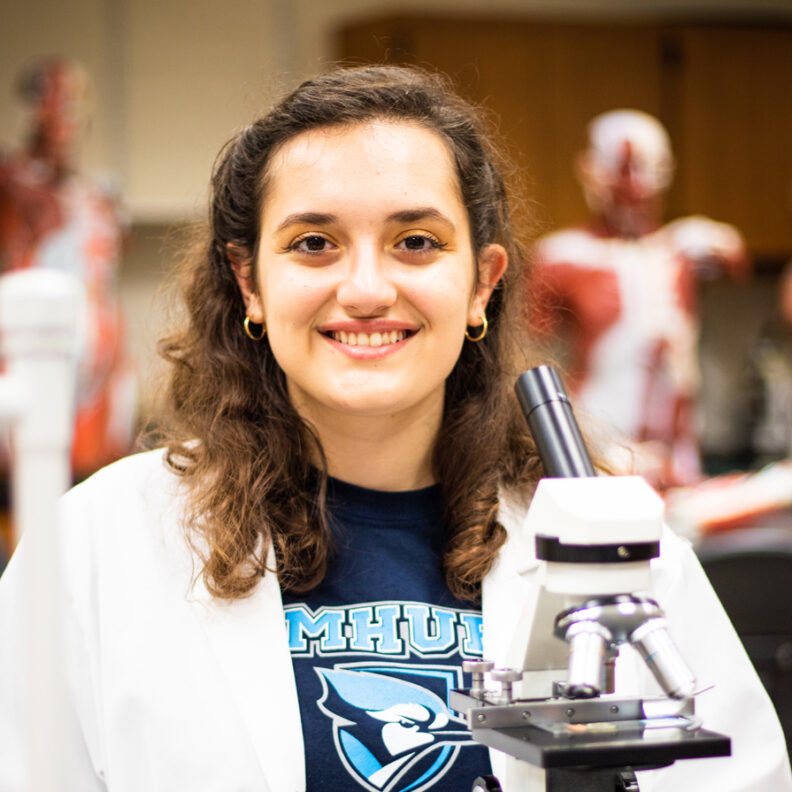
One of the many wonderful things about Elmhurst University is that no matter your major or whether you are a commuter or resident, your life doesn’t have to revolve solely on your academics. Getting involved on campus has been the highlight of my college experience.
Ambrozia Itellari ’24
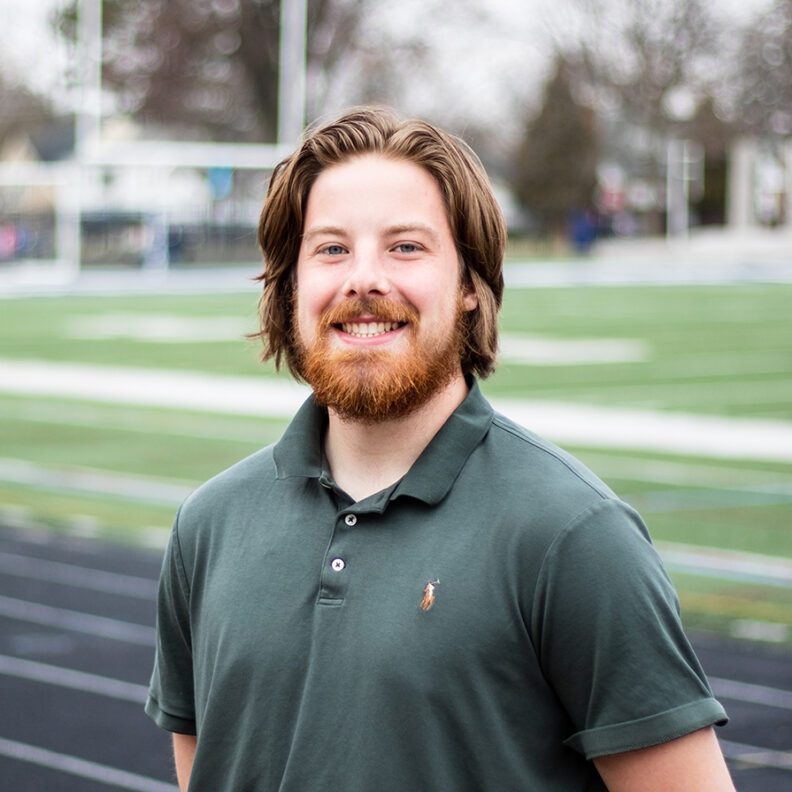
Elmhurst has given me the guidance and pathways to follow to achieve my dreams, while still giving me the ability to grow in all facets of my life. The support I received from my professors and classmates was paramount in my journey as a Bluejay!
Jared Szaltis ’24